
 AssetsDAM
A file becomes useful when it belongs somewhere.
Bring photography, manuals, video, and documents into a library that knows their product context. Organise the files, connect them once, and reuse them across your workspace.

 View screen
Assets
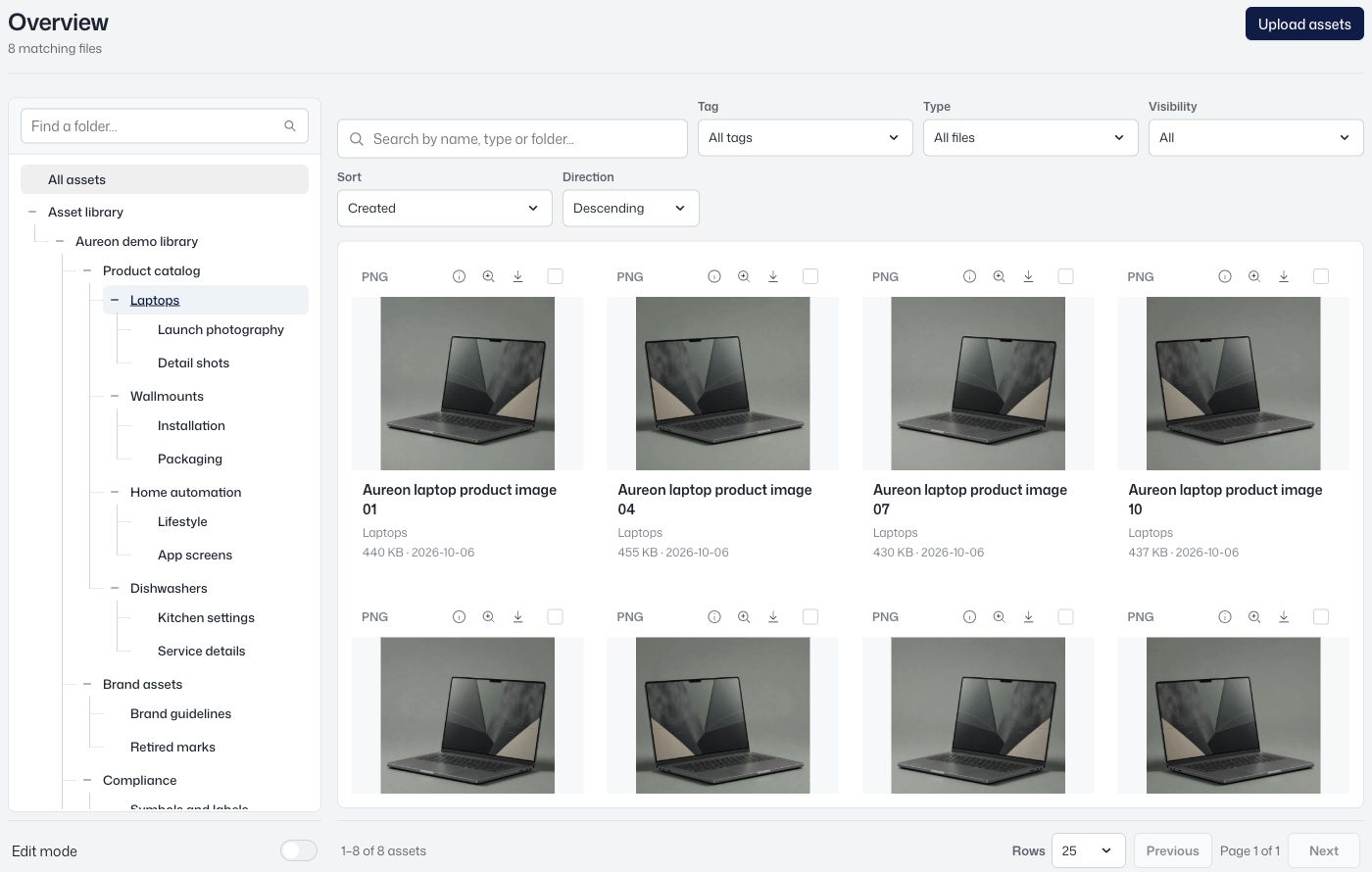
Organize images, videos and files, linked to the products they belong to.
Loading current plans and app prices…
Cloud access
Your media library, within reach.
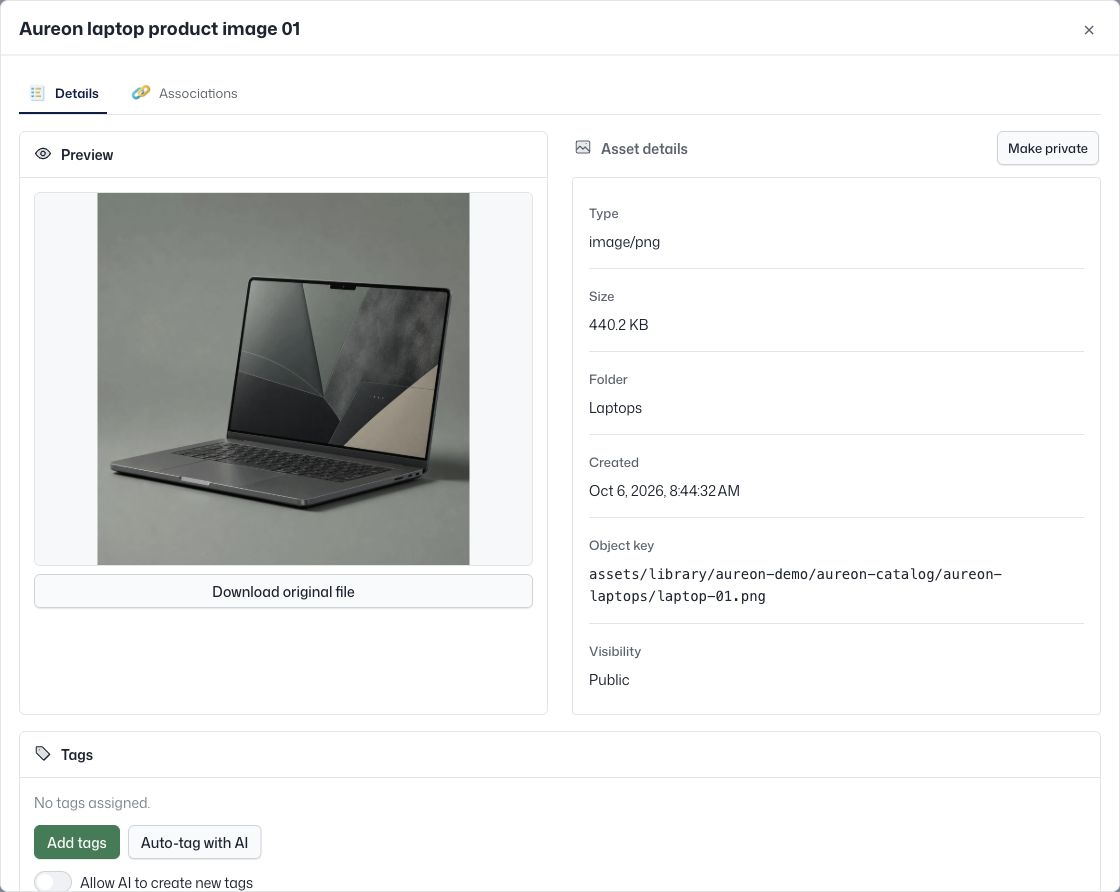
Keep photography, manuals, video, and documents in a shared online workspace. Use folders, tags, file types, and search to find the right file, with visibility settings that control how it is exposed.
Connect files to products once and reuse them across the apps that need them.
 View screen
AI tagging
Make the next search easier.
Use AI tagging to suggest relevant tags for supported images. Reuse your existing vocabulary or explicitly choose to create new tags, then find those assets through the library.
Other supported files may use a first-page preview or metadata; tagging does not imply full-document understanding.
Bring files in
Upload an image, video, or document.
Make them findable
Choose a folder and assign useful tags.
Connect the products
Link each file to the relevant records.
Reuse the source
Use the media in the apps that need it.
A closer look at Assets.
Explore the product screens and the work behind them. Select a view, then open it to inspect the details.
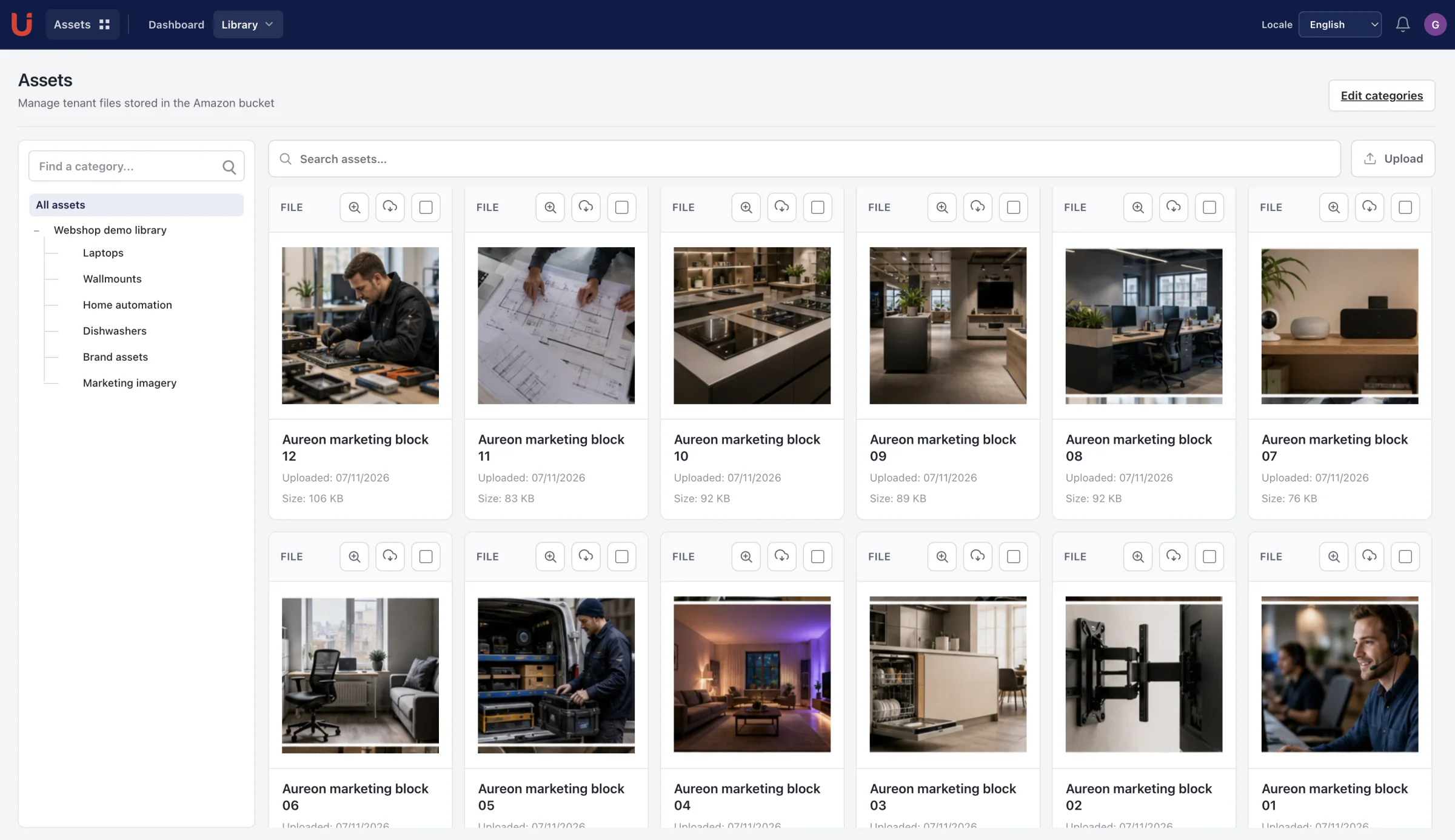
Give every file a context
Organize assets by category and link them to products, families and campaigns. Reuse approved media in shop content, partner material and passport evidence.
Keep the work connected.


A few more useful details.
Control file and folder visibility
Choose how assets and categories are exposed to the readers that use them.
Connect a curated library to Templafy
The built-in connector exposes selected folders and images when configured with access credentials.
Use AI tagging with context
Supported images can be inspected visually. Other files may use a first-page preview or metadata; this is not full-document content understanding.
Give your files a product context.
Explore the workspace with your own catalog.